CTM and Wall-E: one workspace for your coding agents
Choose your agents, manage their work, and keep the knowledge they create.
I don’t expect one coding agent to be the right choice for every task. I want to choose between Claude Code, Codex and other agents while keeping their work and context together.
CTM (Coding Task Manager) runs coding agents in real terminals on your machine, with a browser workspace for sessions, worktrees and review. Wall-E is the personal agent alongside it, making recorded conversations, project knowledge and preferences available as context for future tasks.
The examples use a fictional project, acme-ledger. Screenshots show the real application with synthetic data and scripted agent dialogue.
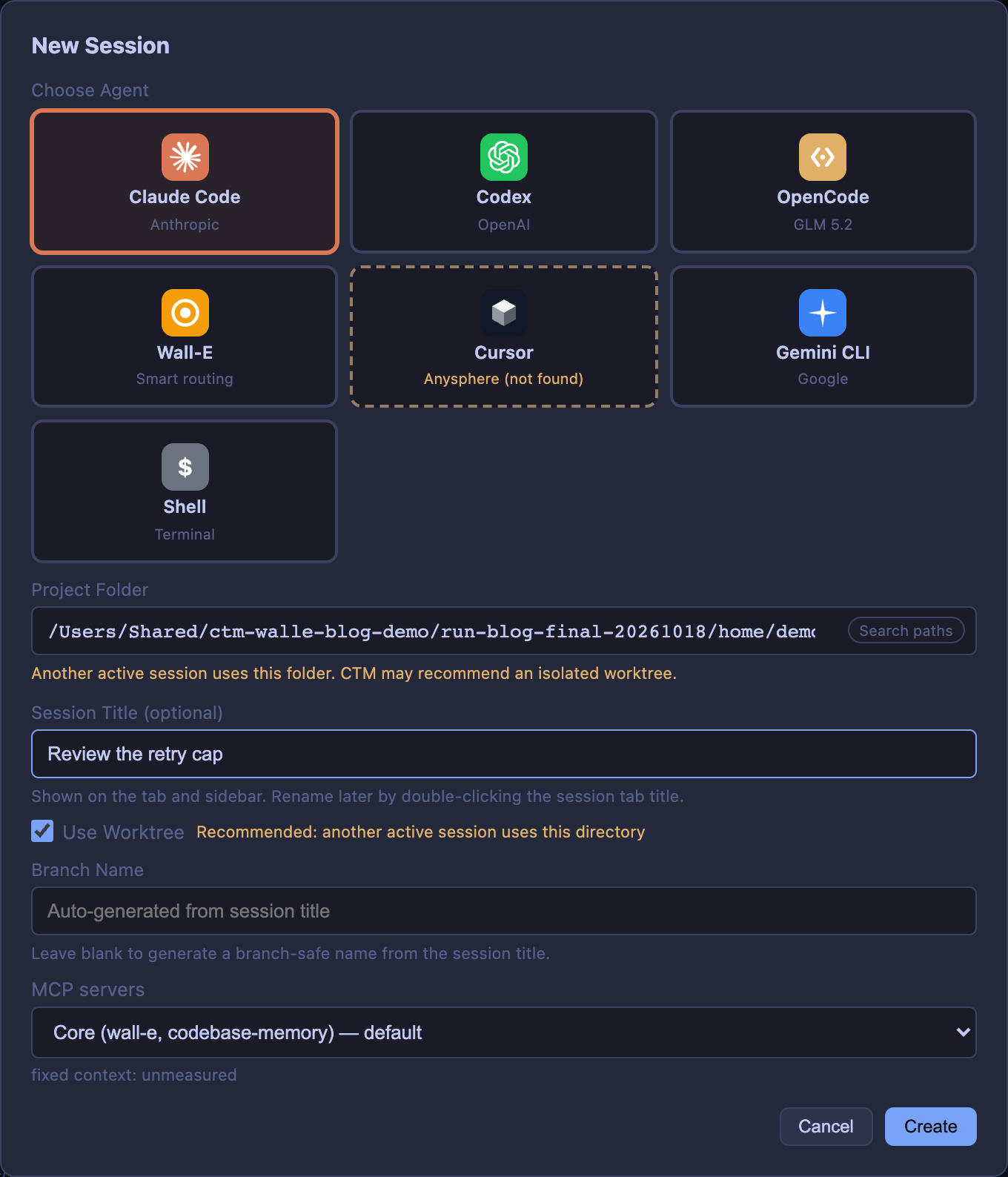
Choose the agent for the task
CTM gives each session its own agent choice. You can run Claude Code, Codex, Gemini CLI, OpenCode and Cursor Agent side by side, and move between their sessions from the same workspace.
For this walkthrough, acme-ledger needs better handling of failed webhook deliveries. One agent investigates the retry behaviour; another works on tests in a separate checkout. You choose which agent takes each role, and can bring in another when the task calls for a different approach.
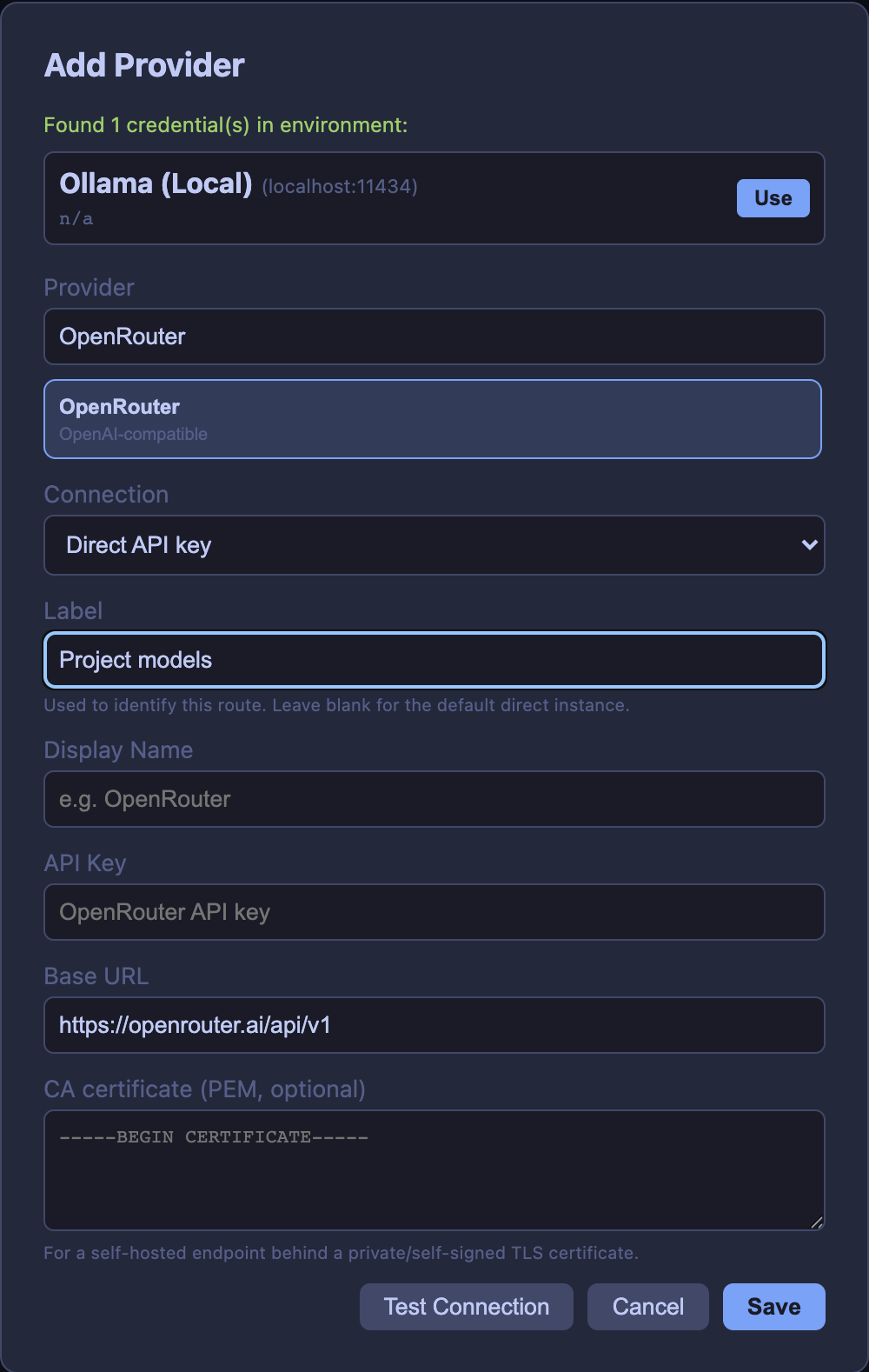
The CLI, the model and the connection serving that model are separate choices. The AI Providers area brings native agent options, direct provider connections and configured routers into one place. That gives you a place to choose how a supported model runs, using your own accounts and credentials. Available model-switching controls depend on the CLI.
Know what each agent is doing
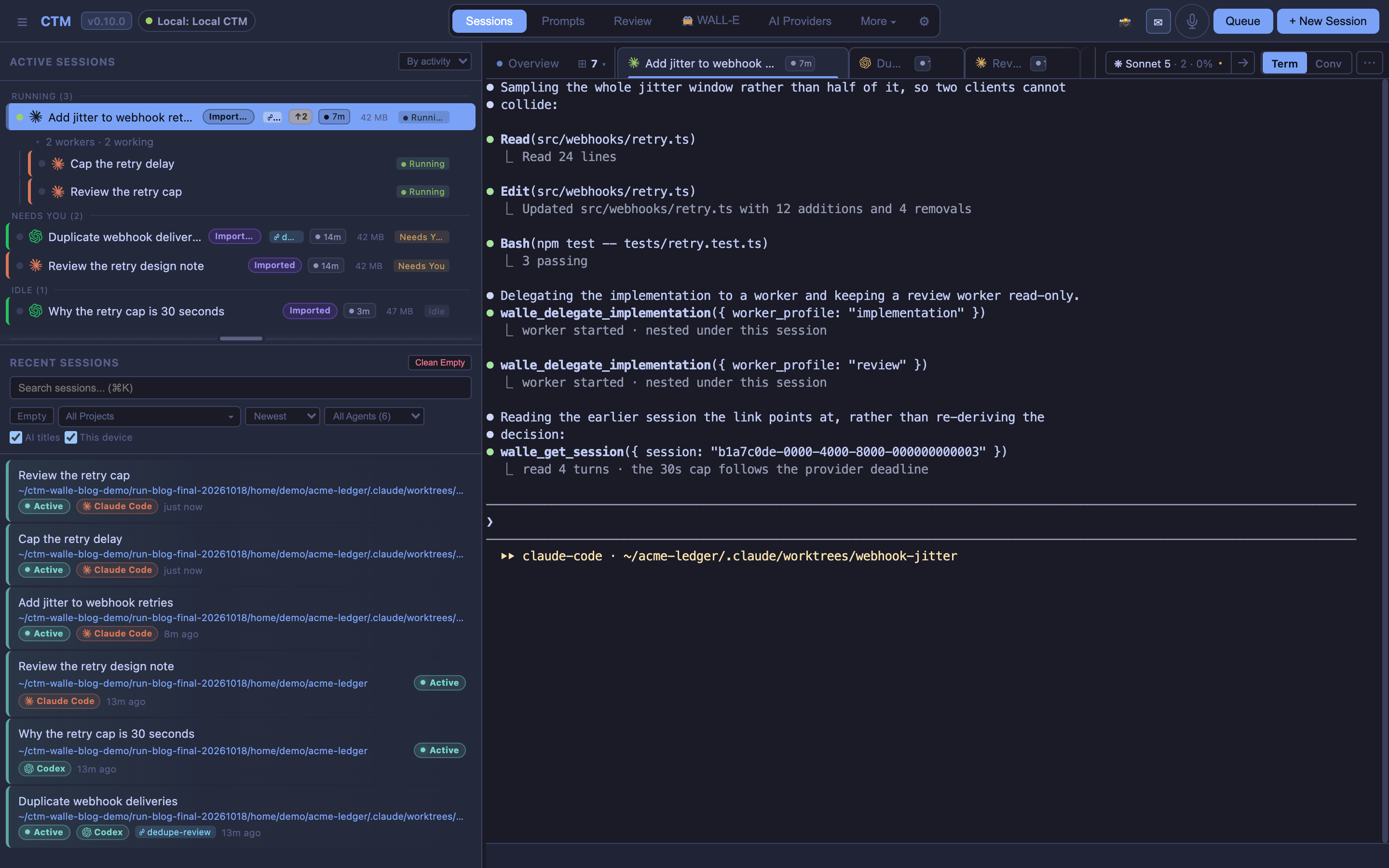
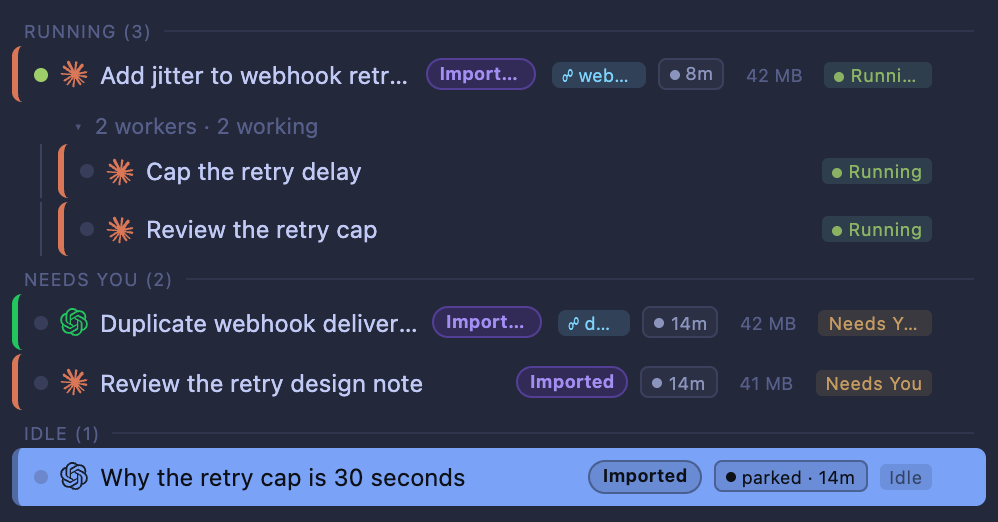
Opening every terminal and reading backwards is a poor way to decide where your attention belongs. CTM's Running, Needs You and Idle labels make the important differences visible in the session list. Workers appear beneath their lead, so you can follow a delegated task and open the individual conversations.
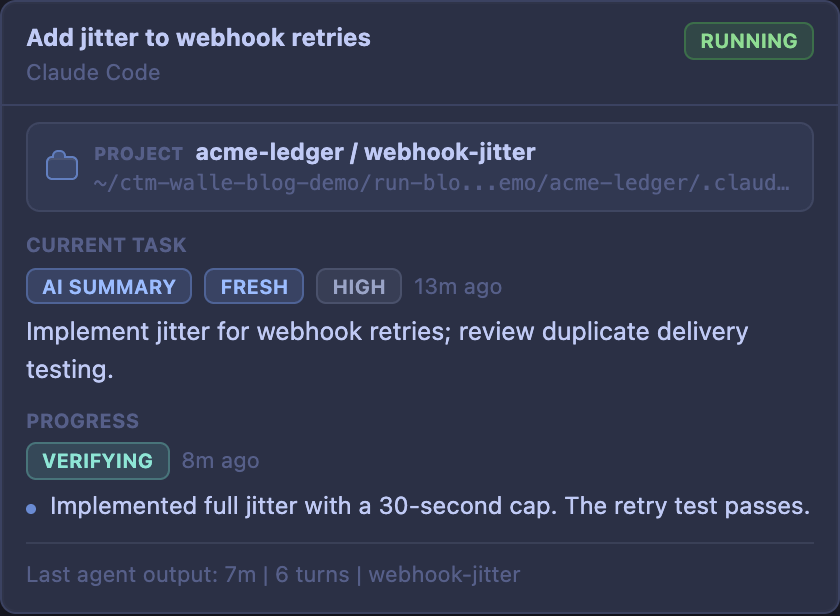
The session summary answers the next question: what is this agent trying to finish? It brings together the current task, recent progress and freshness information. In our example, the useful summary is: “Add jitter to webhook retries. Implementation is ready; the duplicate-delivery test still needs review.” After a break, that is enough to decide which session to open.
Changed-file and commit indicators connect the conversation to the code. You can see which sessions have work to inspect and move into review. Those indicators describe the associated working tree; when several sessions share a checkout, they are shared Git state.
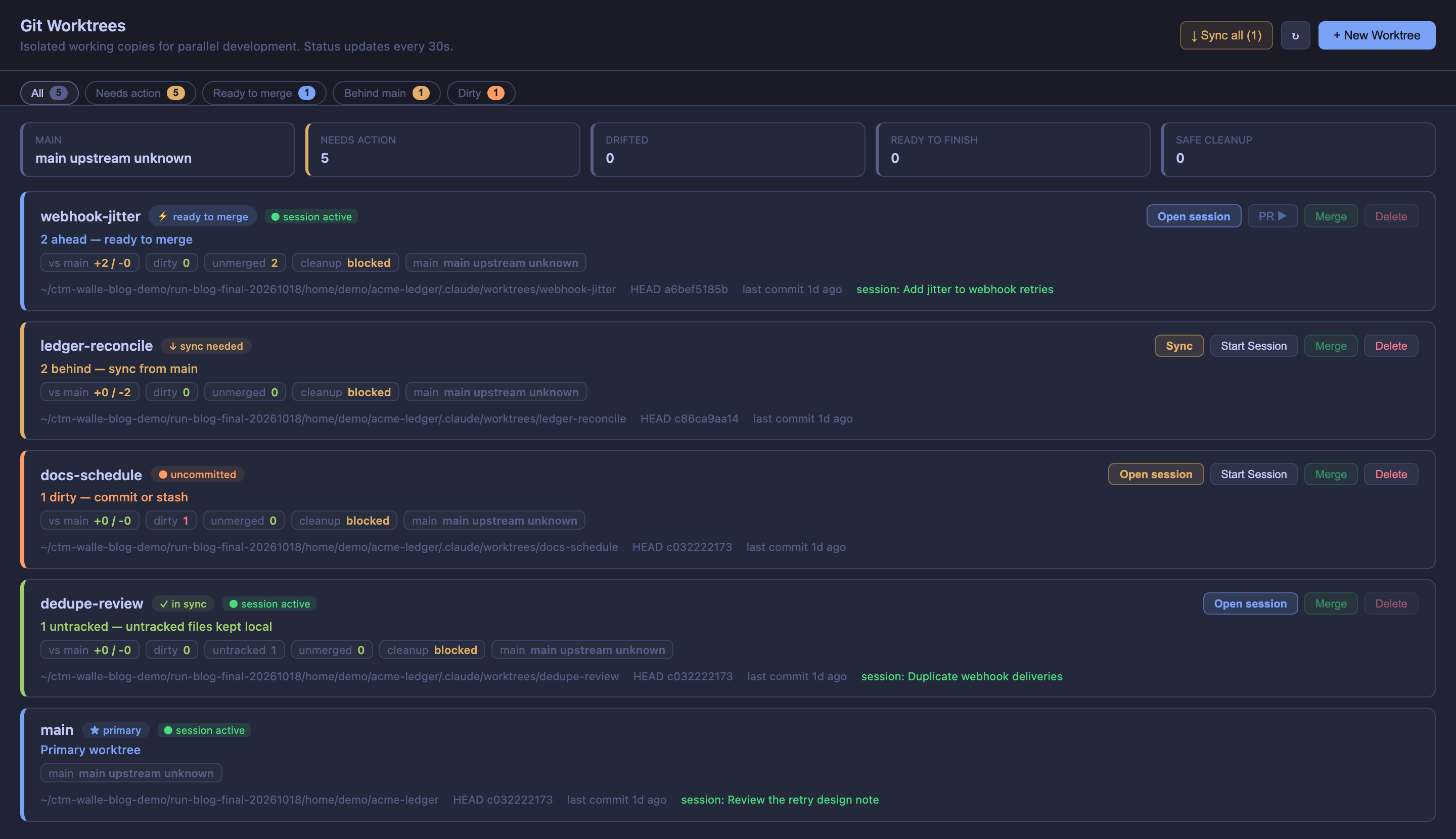
For independent work, create a worktree as part of starting a session. CTM creates the branch and working directory and associates them with the session. The investigation and test work can then proceed in separate checkouts of the same repository. For tasks that start servers, assign separate ports and data directories as well.
The worktree panel helps with what comes afterwards, too. Ready to merge, Behind main and Dirty states show what needs review or maintenance. Session links help you find the relevant conversation. Unreferenced worktrees and branch drift are visible when you need to tidy up.
Let routine permissions move forward
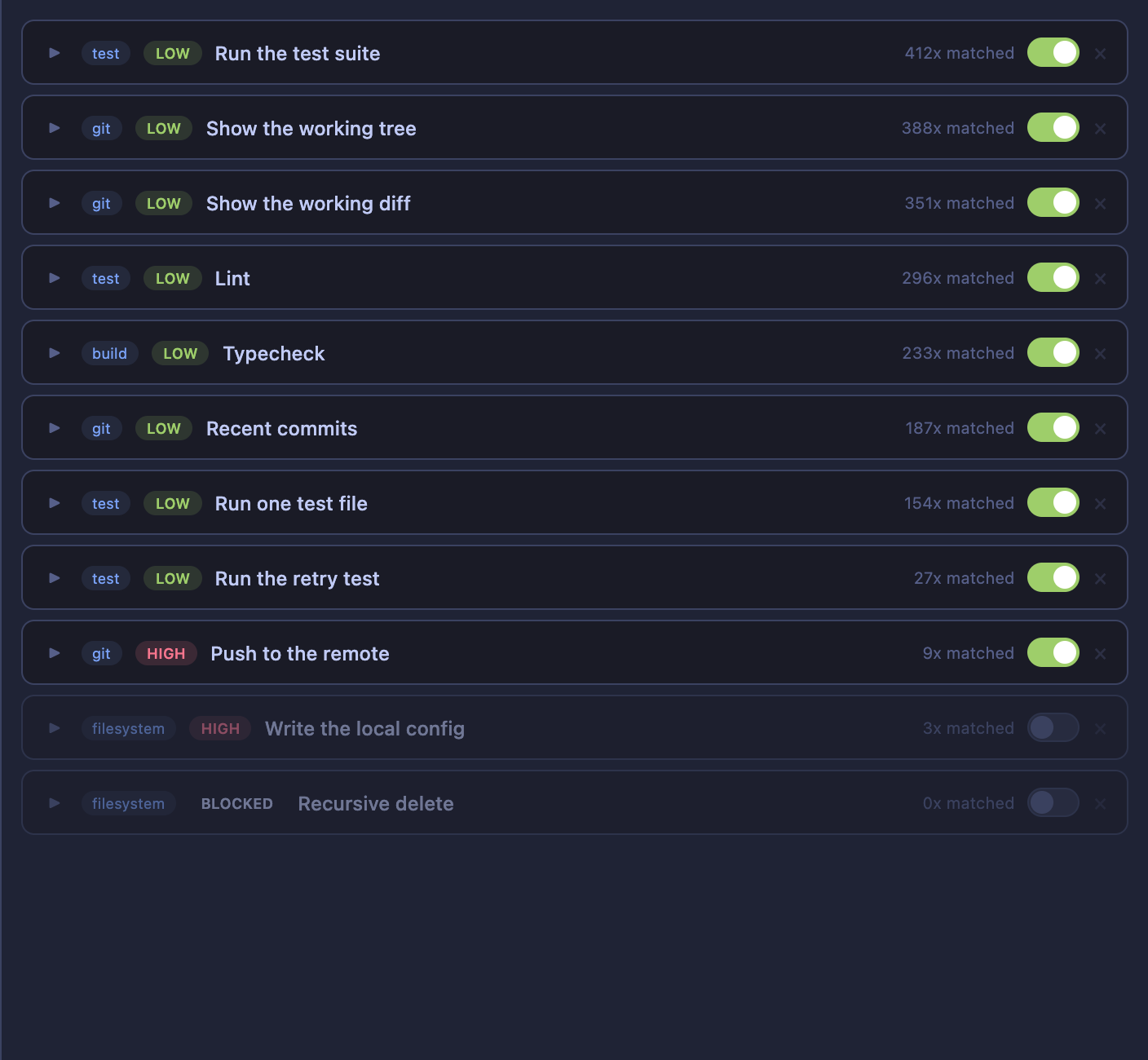
Repeated permission prompts interrupt the work. CTM lets you set rules for decisions you have already made, such as allowing a particular test command in the project you are working on.
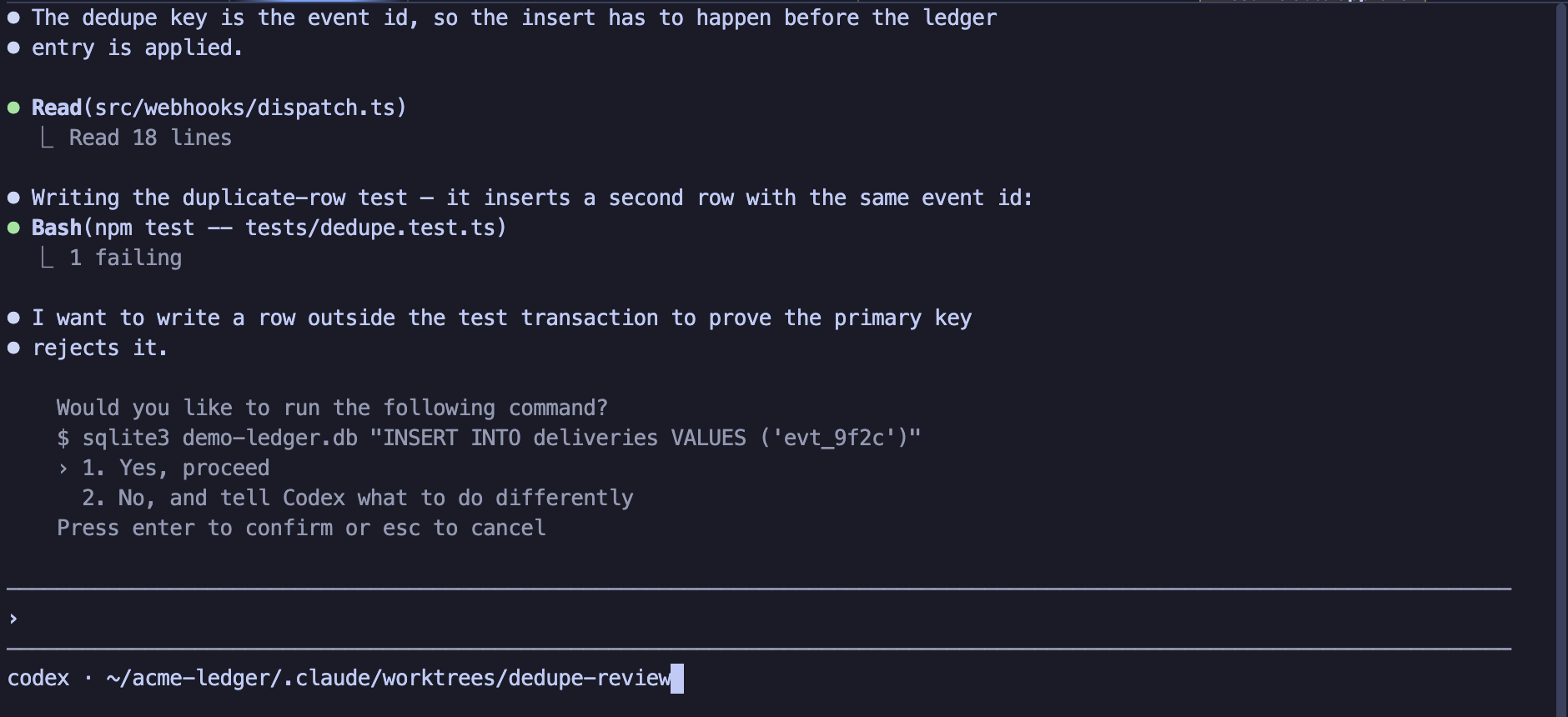
In the example, a scoped test command can proceed under a rule while a request to write outside the test transaction stays pending for your decision. For supported requests that need more judgment, the approval flow can use an AI check against the task. Requests held for you remain visible, with the reason available to inspect.
The Permissions panel lets you inspect the policy behind these decisions, change rules and disable ones you no longer want. The aim is to keep routine work moving while directing your attention to meaningful choices. These rules govern automatic approval; the selected CLI also has its own permission controls.
Reuse the knowledge behind your code
The conversations around a change contain more than its final patch: approaches that failed, constraints that mattered, and the explanation for a decision. As agents produce more output, finding the useful part becomes a task of its own.
Suppose a later change raises a familiar question: why did we cap retries at 30 seconds? The answer may be in an earlier investigation, rather than in the few lines that implement the cap. CTM and Wall-E give both you and your agents ways to find that work again.
Start with the recorded conversation. CTM presents prompts, answers and tool calls as structured turns, so you can read the decision in context. Search helps you find the session from a phrase, a file reference or a session link. You can inspect the original discussion when a short summary leaves something unclear.
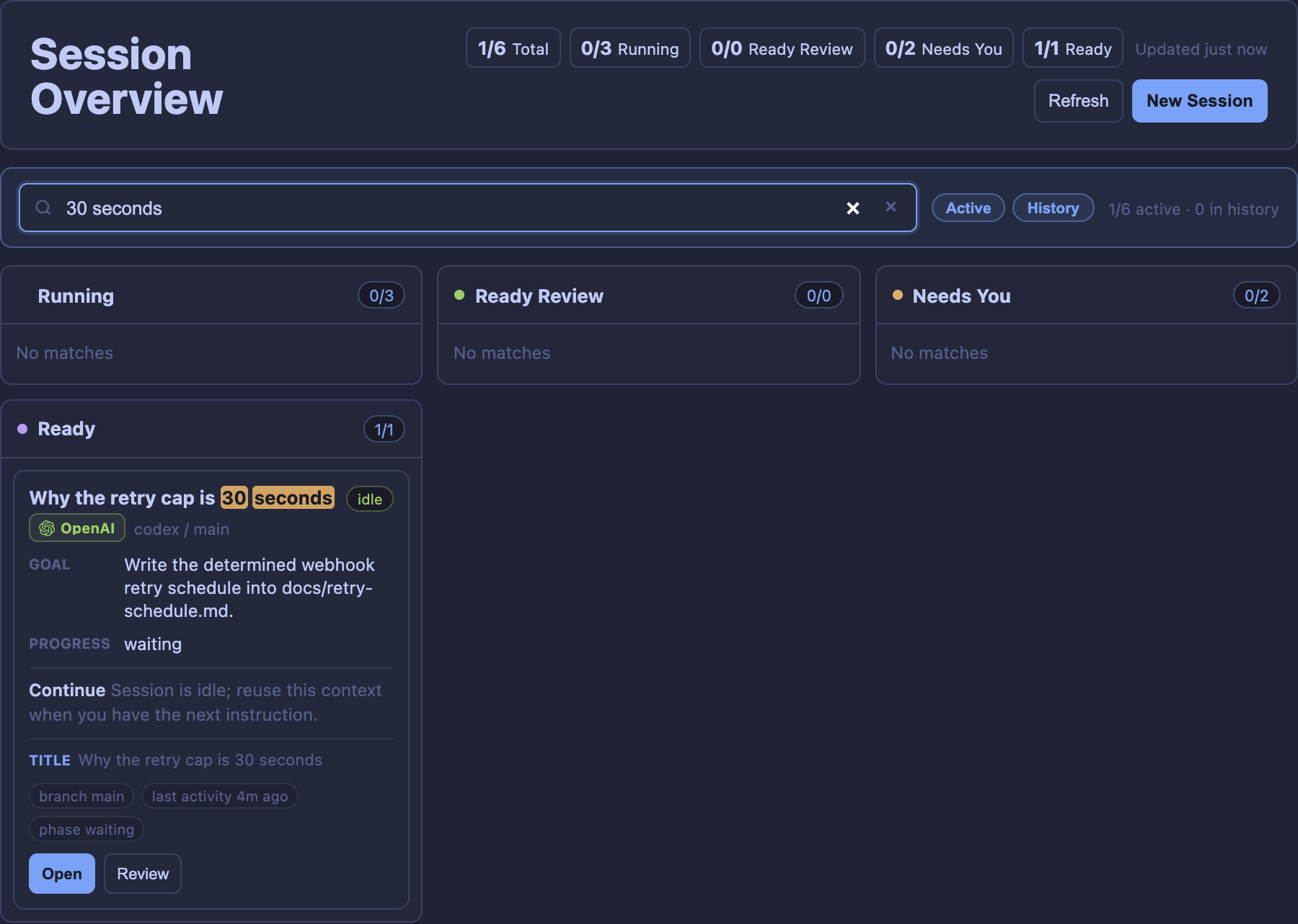
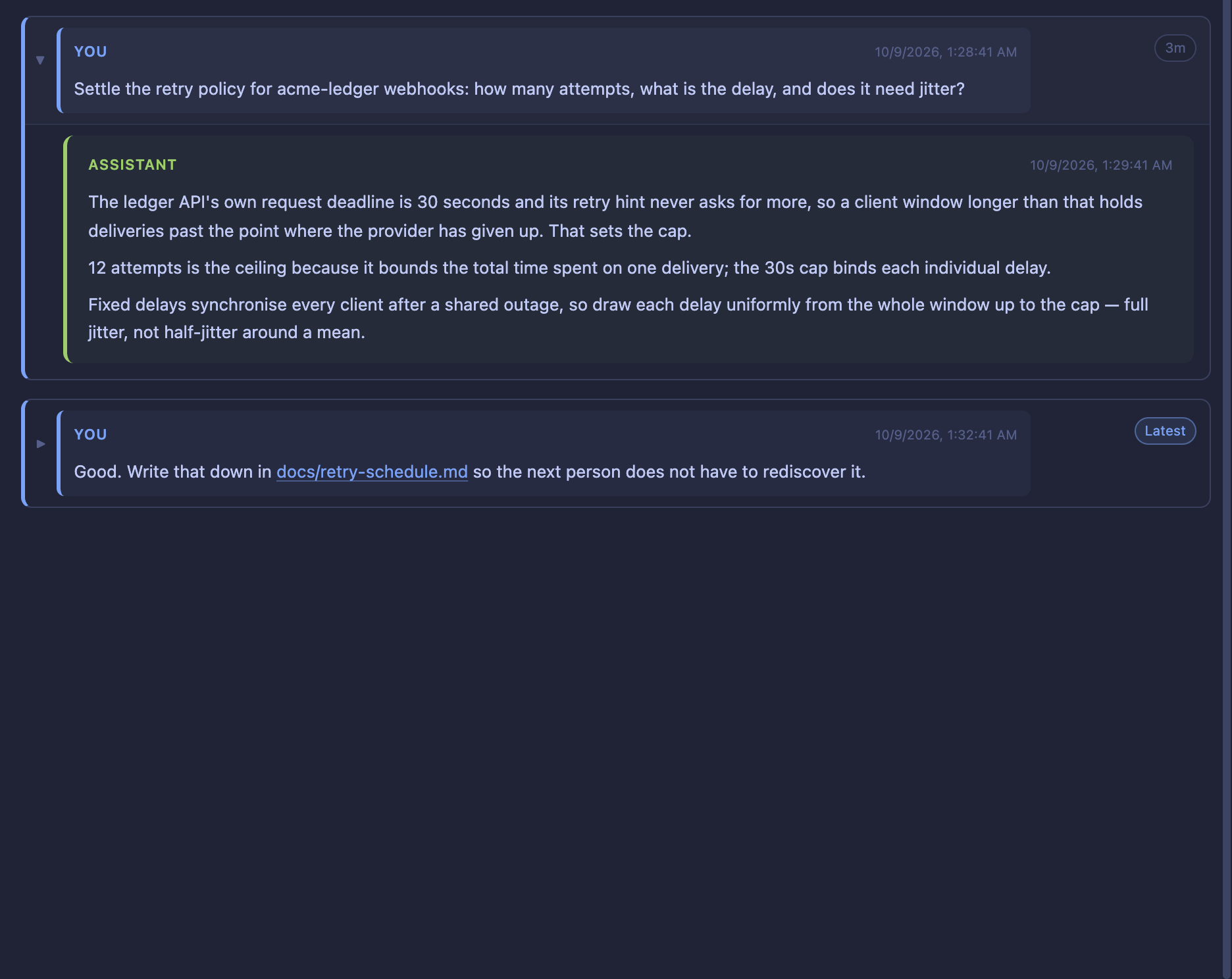
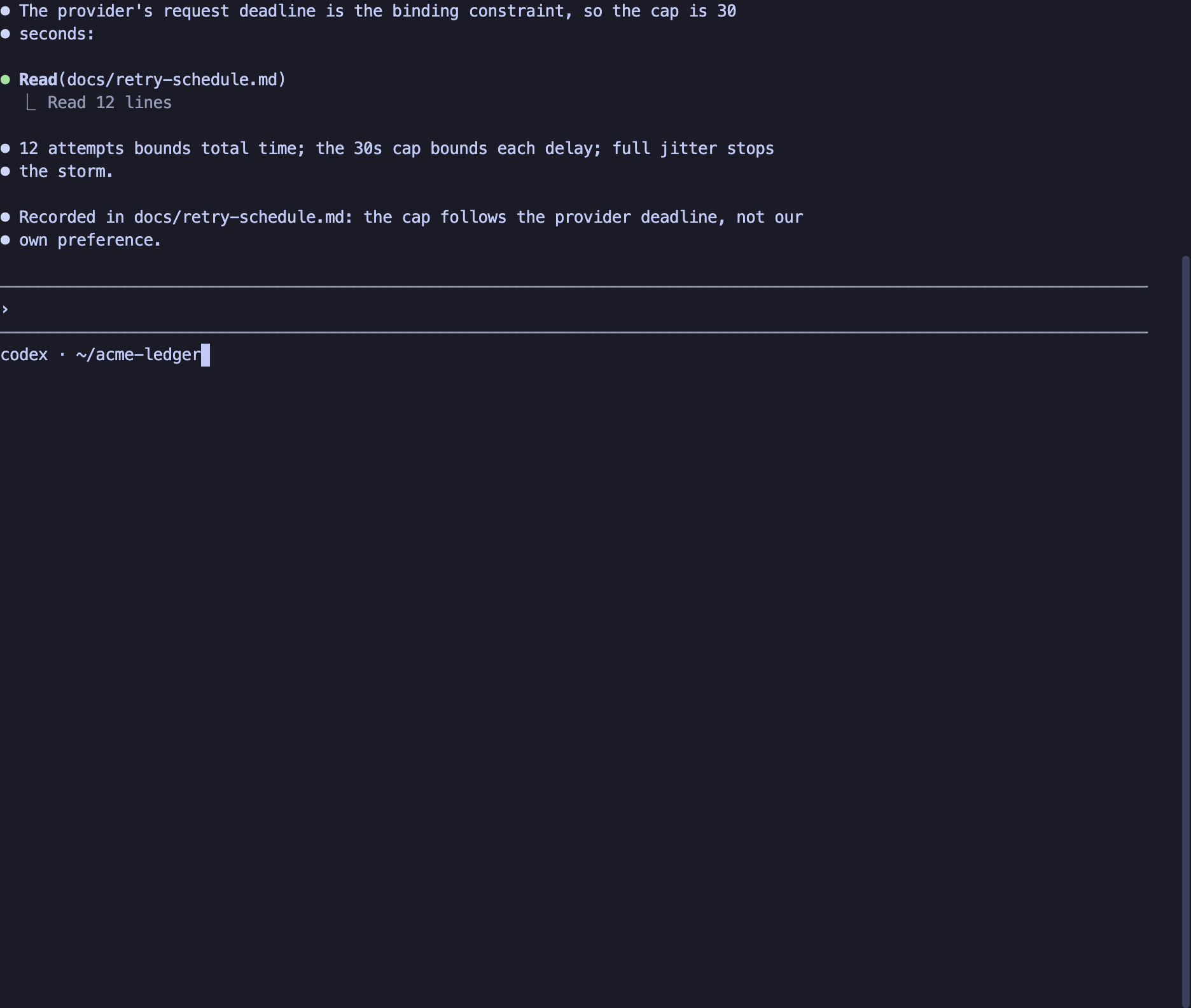
The same history can help another agent. With Wall-E connected, paste the earlier session's URL into a new session and ask the agent to read it. If you do not know which session contains the answer, ask it to search:
Search Wall-E for the earlier retry investigation in acme-ledger.
Find the decision about the 30-second cap and use it when reviewing this diff.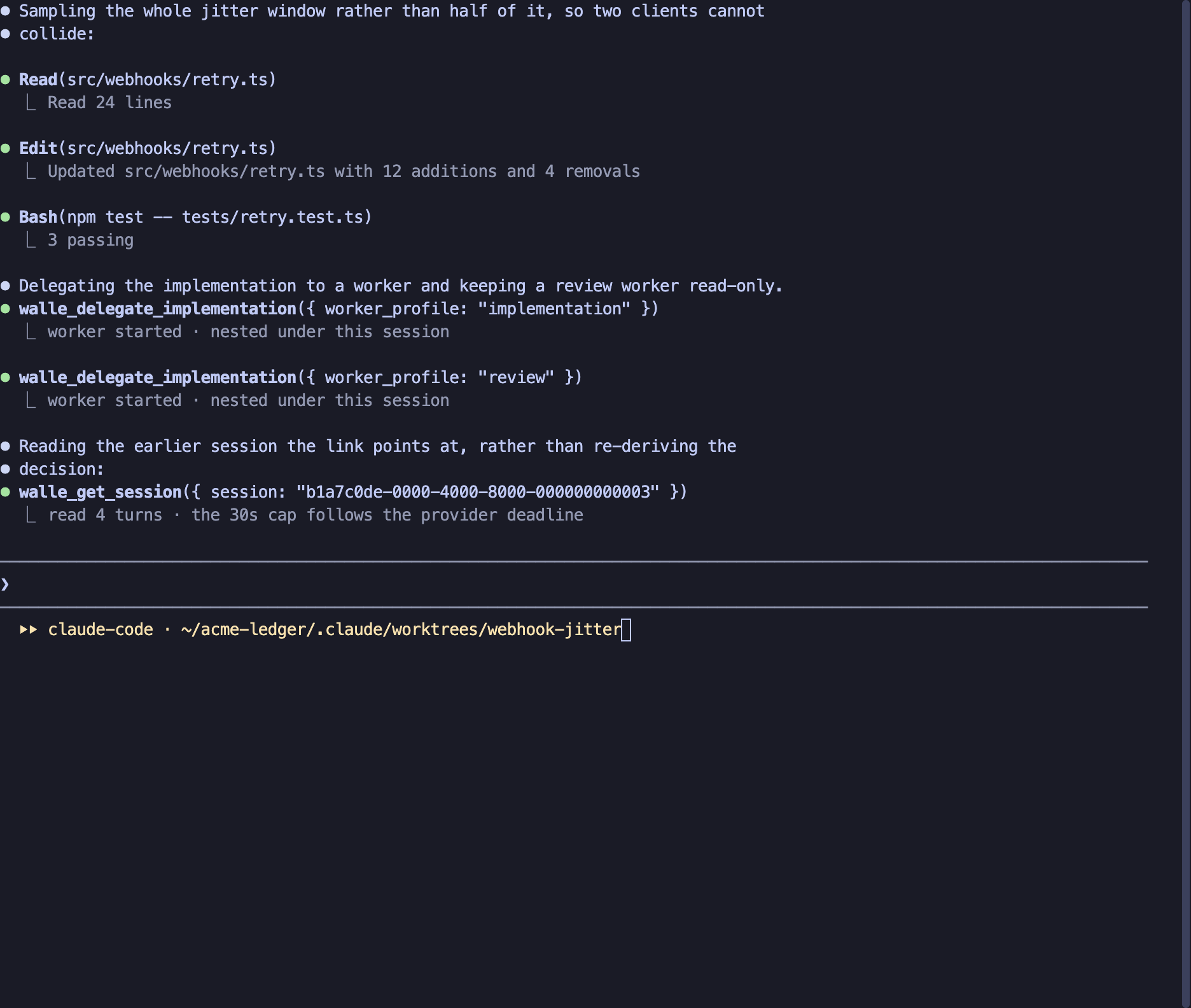
Recorded history, search, summaries and durable memory serve different purposes. The history keeps the discussion available. Search finds relevant material. Summaries and bounded context retrieval help an agent use it within a limited context window. Durable memories preserve useful project facts and preferences beyond a single task.
The result is continuity across sessions and models: an earlier decision can inform the next review instead of being rediscovered. You can still check the retrieved discussion against the current branch and files. The accumulated knowledge stays part of your workflow as your choice of agent changes.
Keep work available without keeping everything running
A useful investigation can stay relevant long after its agent needs to be active. CTM can park an eligible inactive session to stop its process and free resources. The recorded conversation remains available, and you can resume the work from the same workspace.
CTM and Wall-E also reduce duplication behind the sessions. Their shared MCP gateway can serve eligible local tools from one process across several sessions. MCP is the connection through which agents use tools such as Wall-E. Tools that need session-specific state keep separate instances.
These mechanisms let you keep more work accessible while reserving resources for active tasks.
Review and correct work in one place
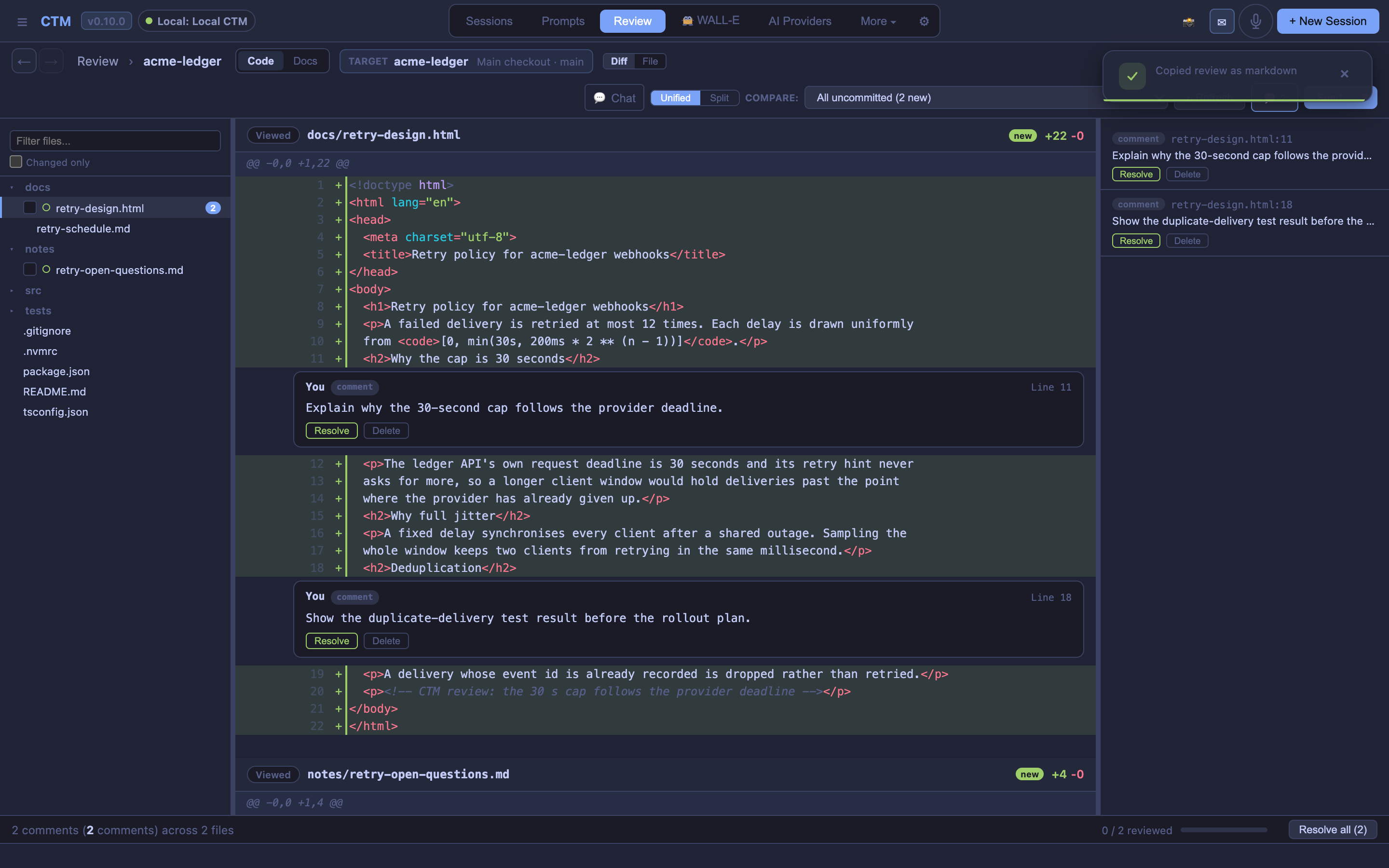
A change can include a design document, source code and tests. CTM's Review page lets you move between rendered HTML or Markdown, source files and diffs. New files appear in review before Git tracks them.
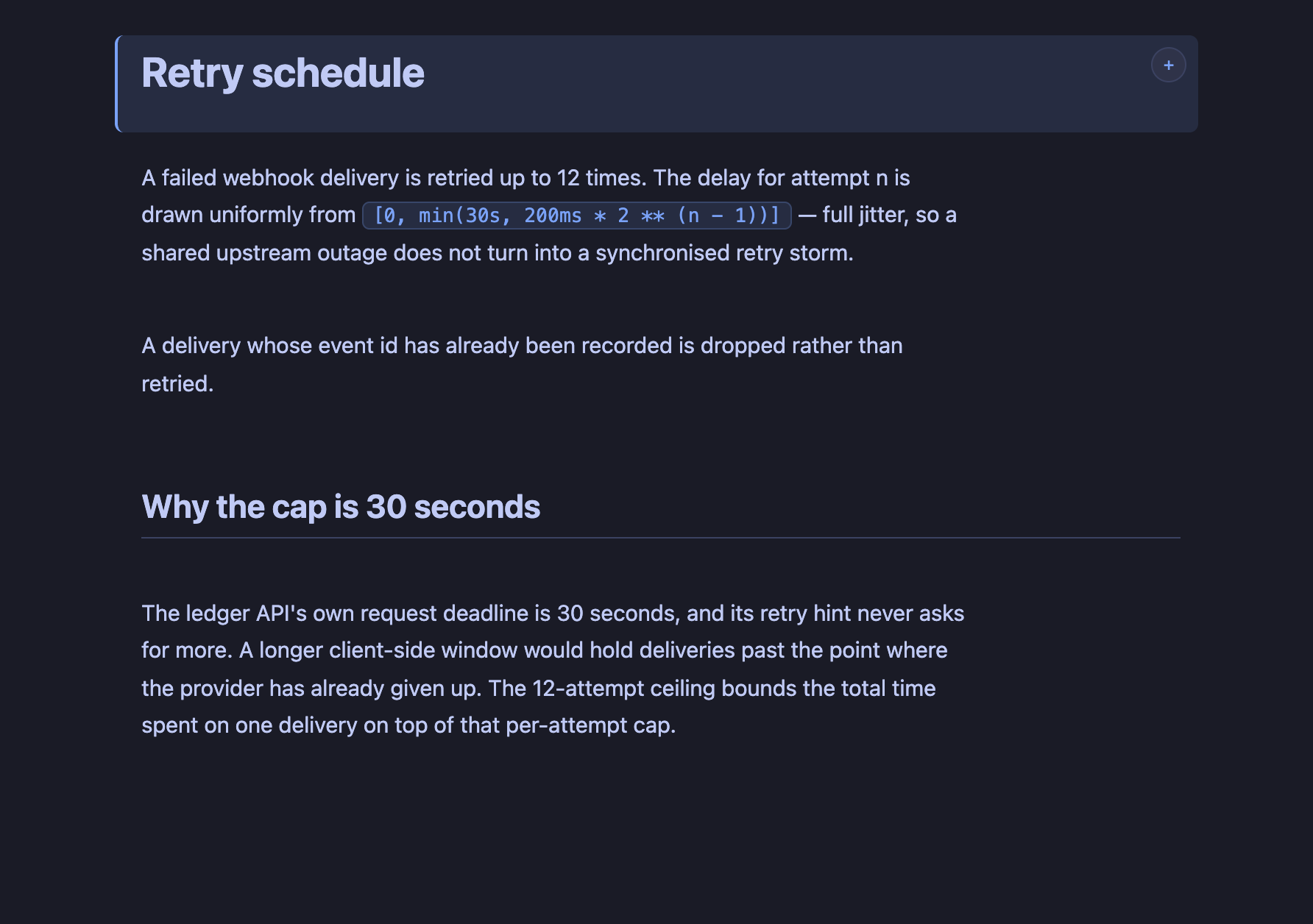
For the retry change, review the design alongside the implementation. Leave a comment asking the agent to explain the cap or clarify the duplicate-delivery behaviour. Comments collect into one message for the relevant session, keeping feedback connected to the files and conversation that produced the change.
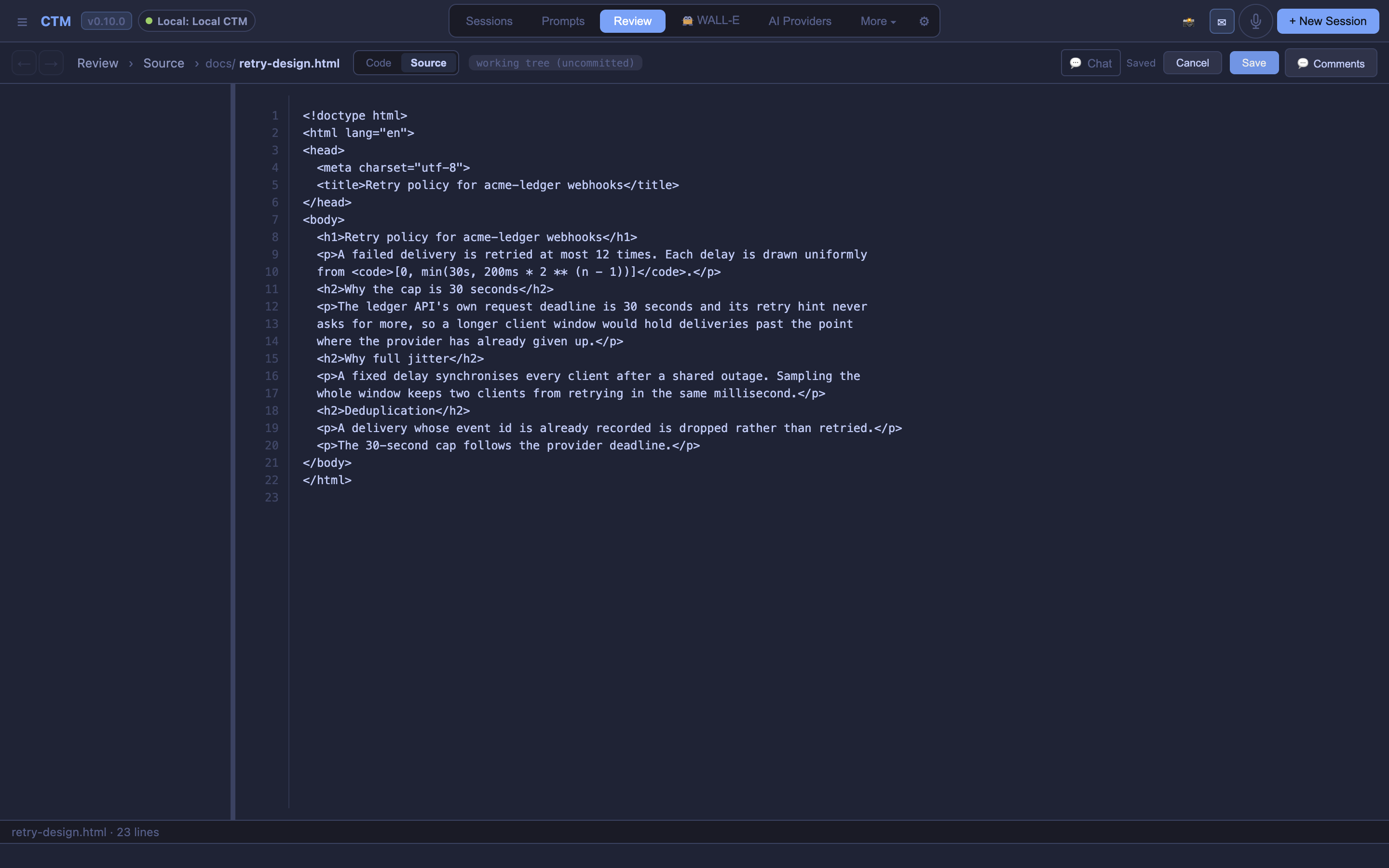
You can make a small correction yourself, too. Open the current file in File or Source view, choose Edit, change the text and Save. The working file changes, and the diff reflects the correction. Historical revisions and binary files remain read-only.
A personal agent with context about you
Wall-E's role extends beyond an individual coding task. Project knowledge, connected work context and remembered preferences give it something useful to carry into the next request.
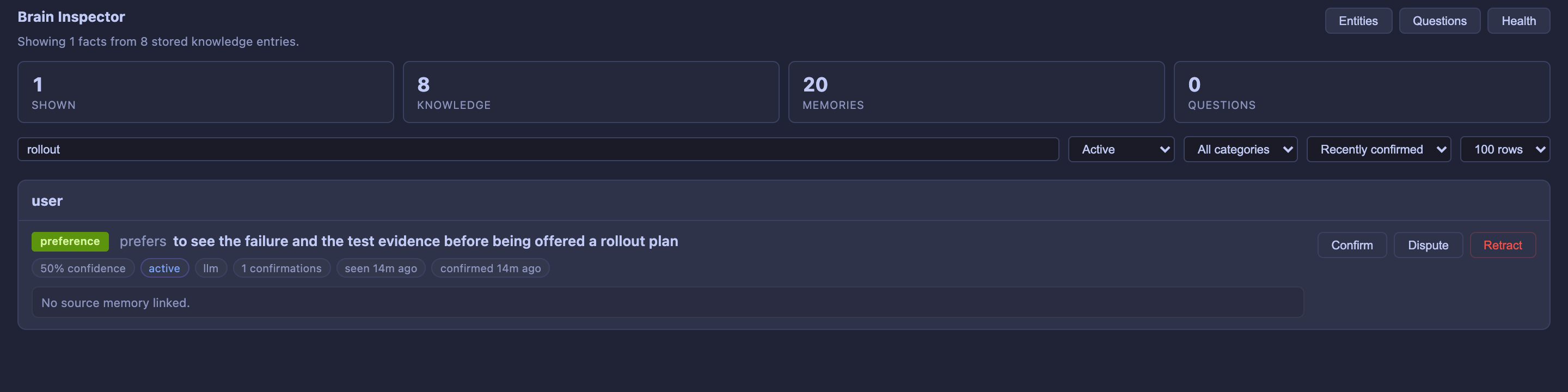
For our fictional developer, a saved preference might be: “Show the failure and test evidence before proposing a rollout.” That preference can inform a review brief, while the earlier retry discussion supplies the project-specific decisions. The next agent has a clearer starting point because both kinds of context are available.
My longer-term goal for Wall-E is a personal agent that understands my work and preferences increasingly well, and can work more like I would. Persistent, inspectable context is the foundation: retaining useful decisions, learning which guidance matters, and making it available when a new task begins.
Try it on one project
npx create-walle install ./walleFollow the setup guide to connect your agent accounts and Wall-E. This walkthrough uses the 0.10.0 development build. CTM and Wall-E keep their state on your machine; model requests go to the providers you choose, and memory coverage depends on the history and sources available.
Start with a small task in a worktree. Choose an agent, follow its status and summary, then review its changes. In a second connected session, ask another agent to retrieve the earlier conversation and use it in its review.
That is the workflow I want: freedom to choose the next agent, a clear view of the work, and knowledge that remains useful after the session ends.